Running your Partner Hub
As a Alobam partner, you onboard schools, manage them under your own brand, and earn commission on every term they pay. Here's how the Partner Hub works.
Getting Your Account
Partner accounts aren't self-registered — the platform team onboards you after reviewing an application.
Apply as a partner
Submit an application from the public Partner Program page — your name, organisation, expected number of schools, and background. The platform team reviews it.
Get onboarded
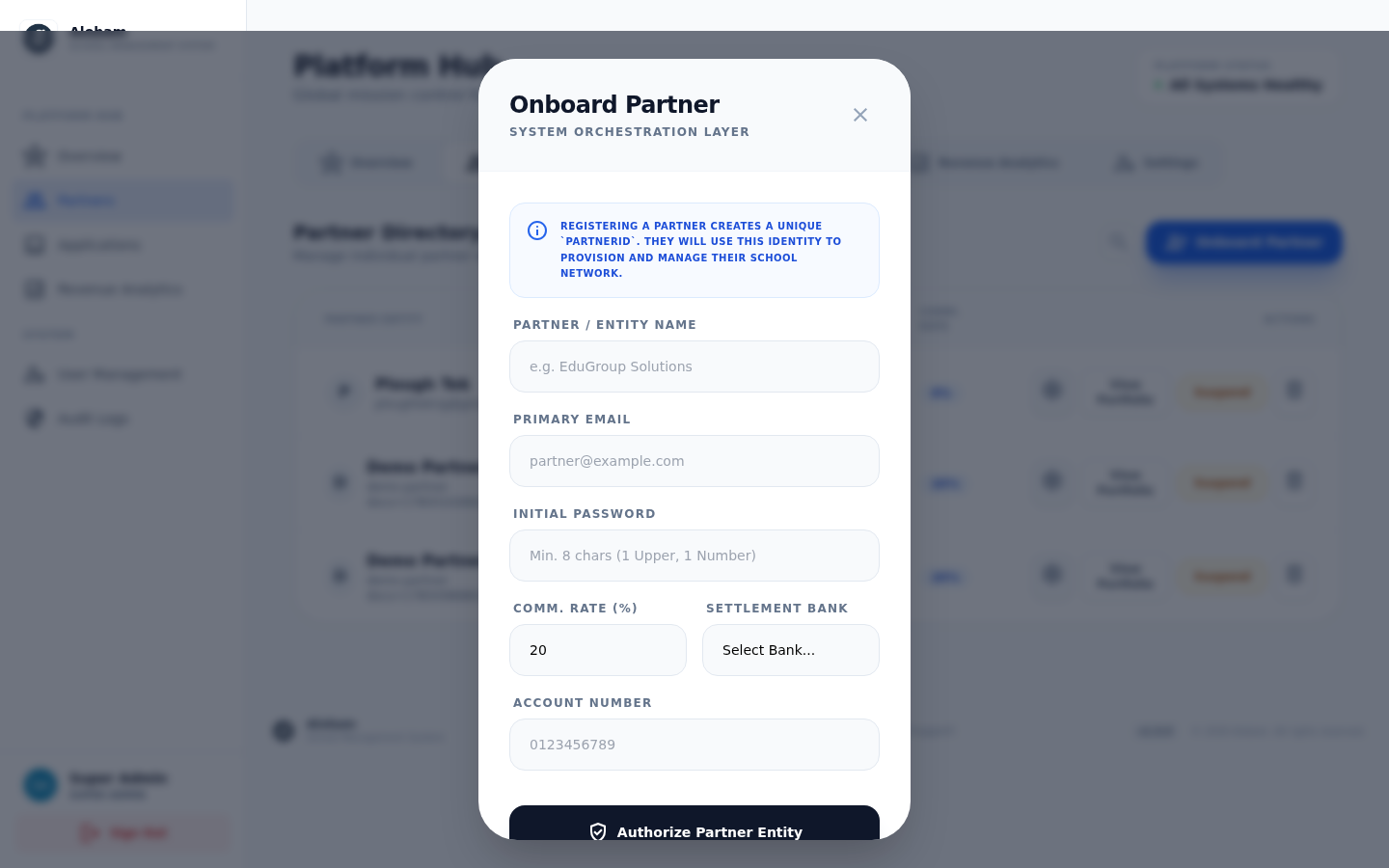
Once approved, the platform team creates your account with a unique Partner ID, your commission rate, and settlement bank details for payouts. You'll receive login credentials by email.
Hub Overview
Sign in at /login with your partner credentials and you'll land on your Partner Hub — your home base for everything.
Your dashboard at a glance
The Overview tab shows your total and active schools, total students across your network, and a quick directory of your schools. You can also set your own logo, display name, and brand color here — every school you provision carries your identity.
Provisioning Schools
Spin up a fully configured school environment for a new client in under two minutes.
Open the Schools tab
From the Partner Hub, switch to the Schools tab to see your full portfolio — each school's status (active, trial, suspended), student count, and next billing date.
Provision a new school
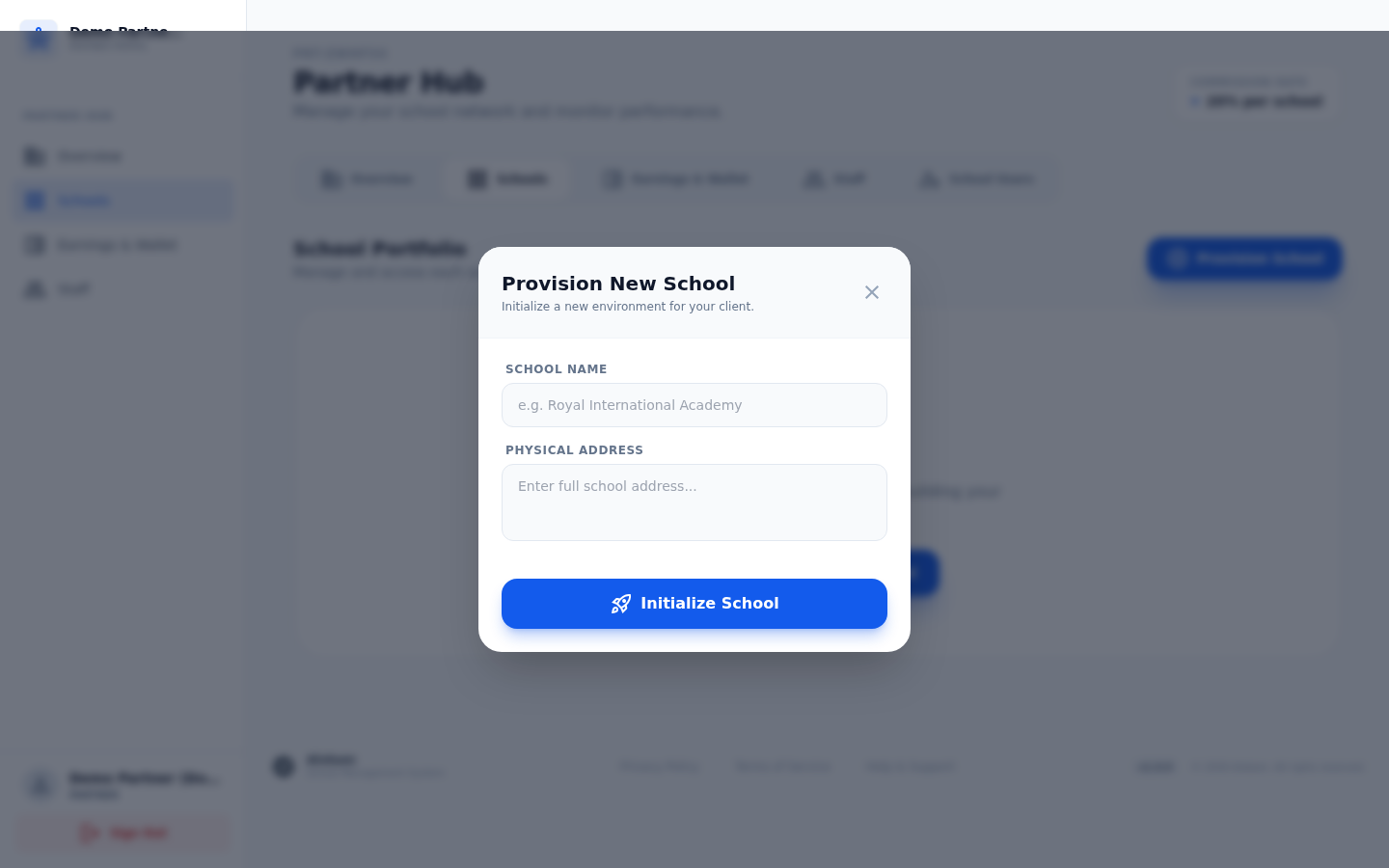
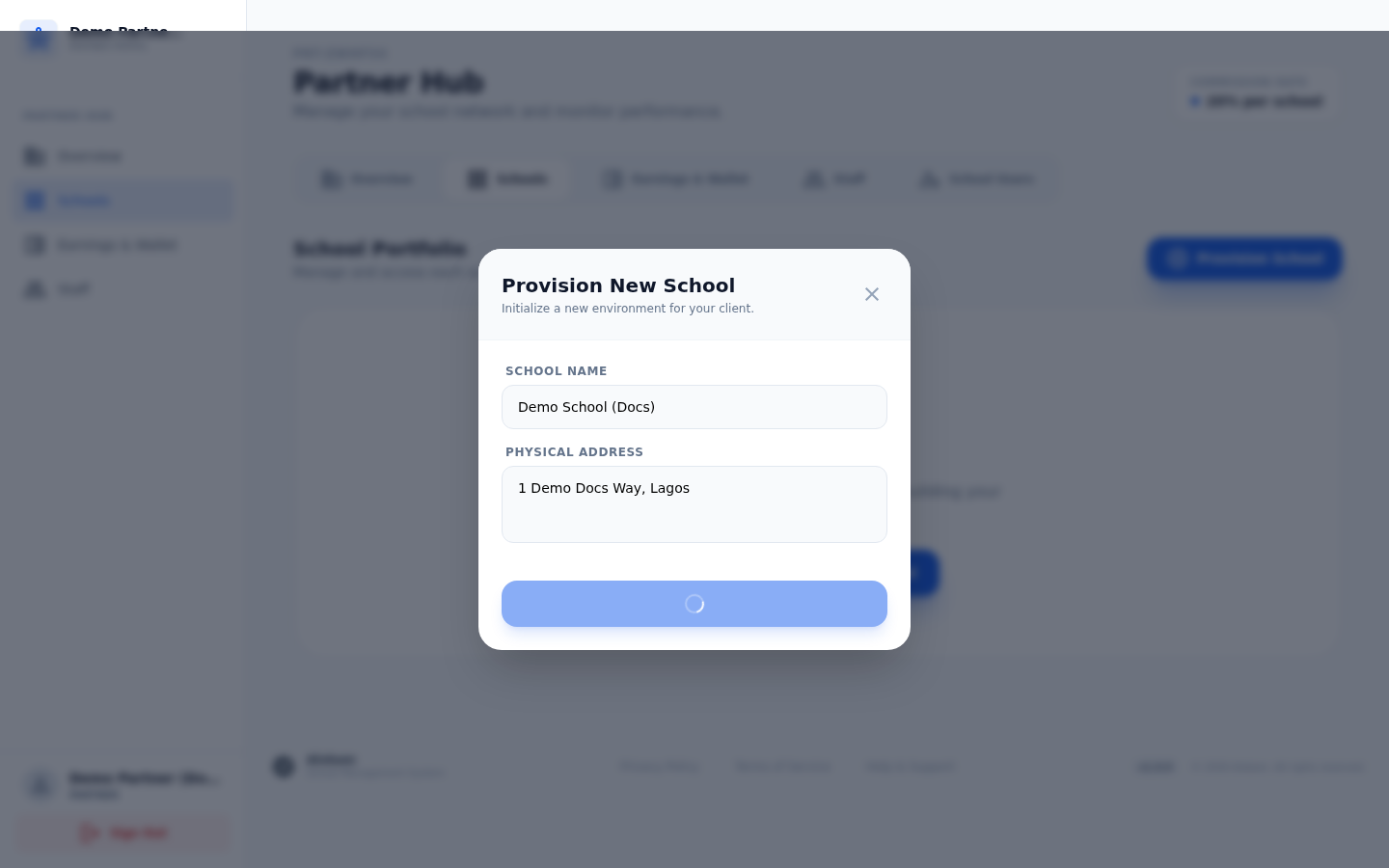
Click "Provision School" and enter the school's name and physical address. That's all it takes — the platform initializes a new, isolated environment for that school automatically.
It's live
The new school appears immediately in your Schools tab as a card, ready to be configured and used.
Managing a School
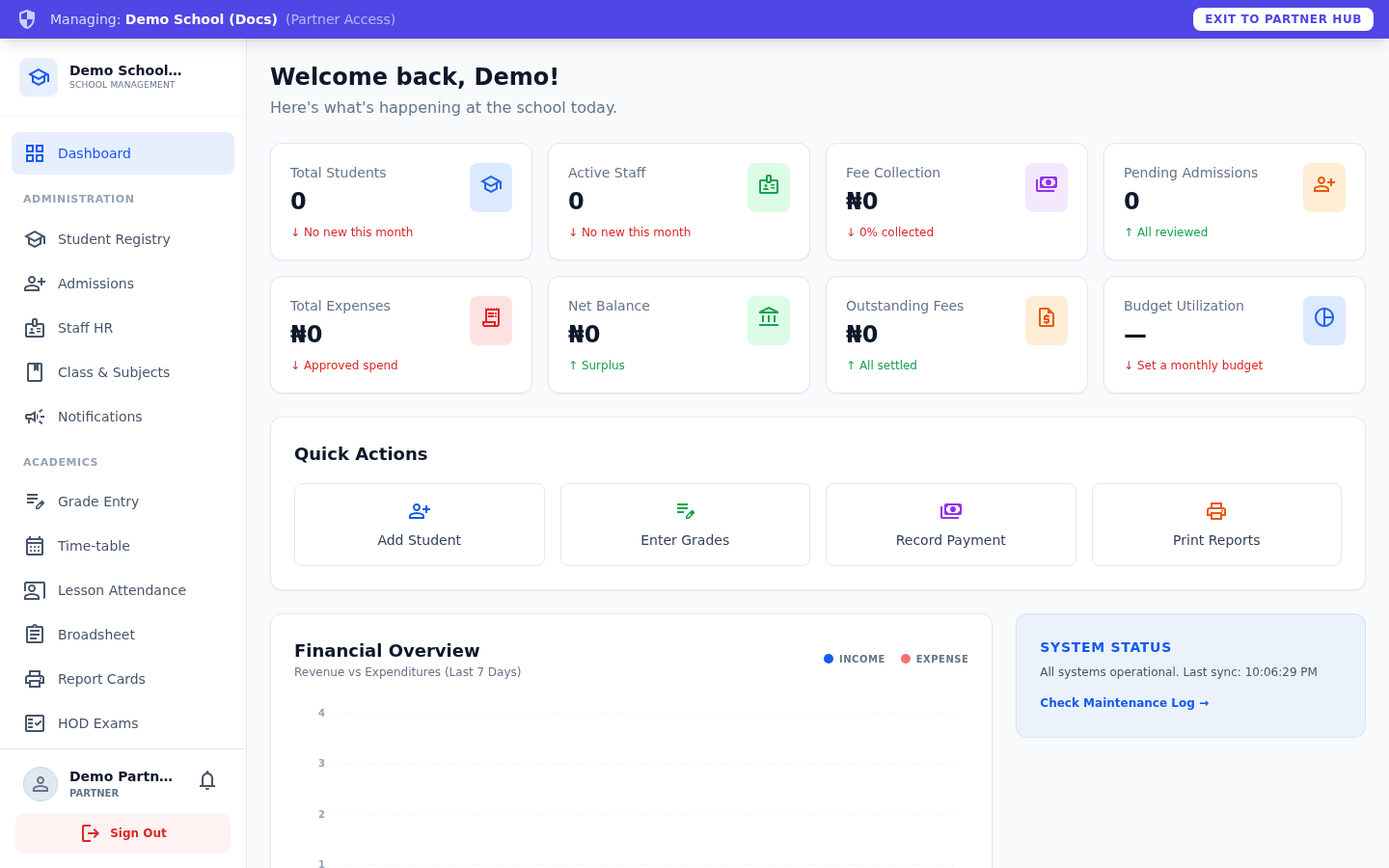
From any school card, click “Manage School” to step into that school's own admin dashboard — the same view a school admin sees.
Step into the school
While you're managing a school, an "Exit to Partner Hub" banner stays visible so you can jump back to your own hub at any time. Everything you can do here is covered in the School Guide.
Delegating to Staff
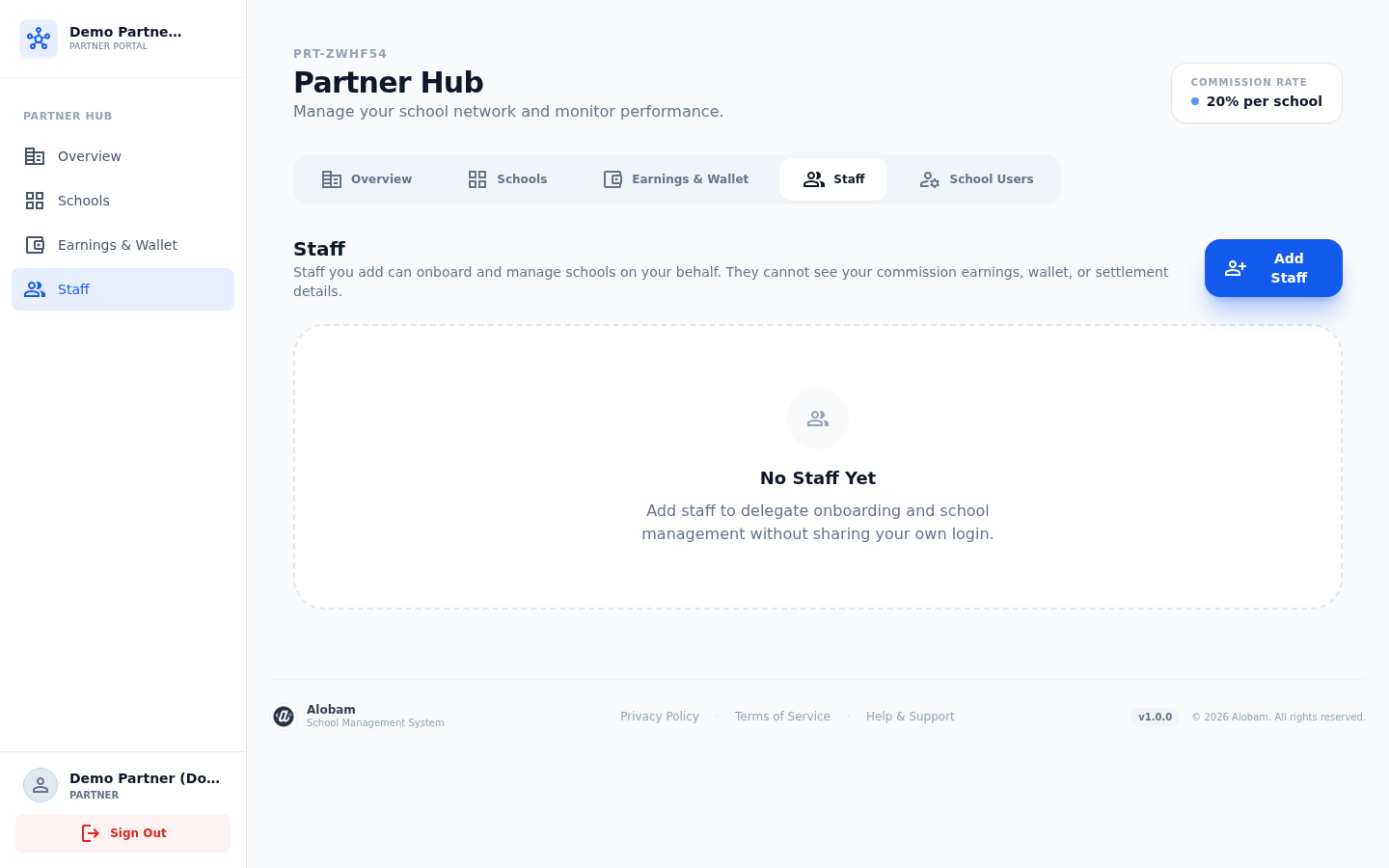
Add staff to onboard and manage schools on your behalf, without sharing your own login. Staff can never see your commission earnings, wallet, or settlement details.
Open the Staff tab
The Staff tab lists everyone you've delegated to, with the ability to suspend, reactivate, or remove them at any time.
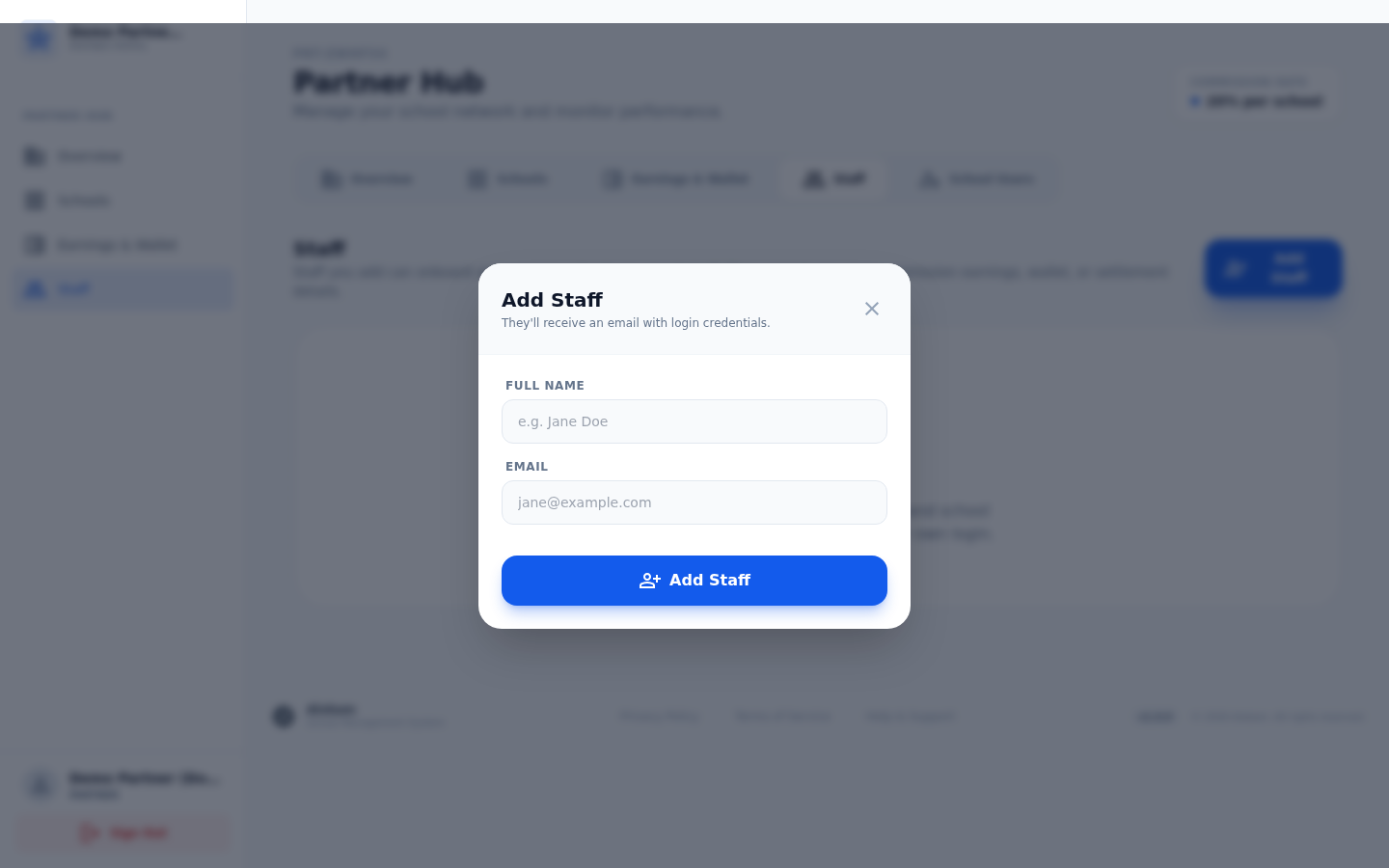
Add a staff member
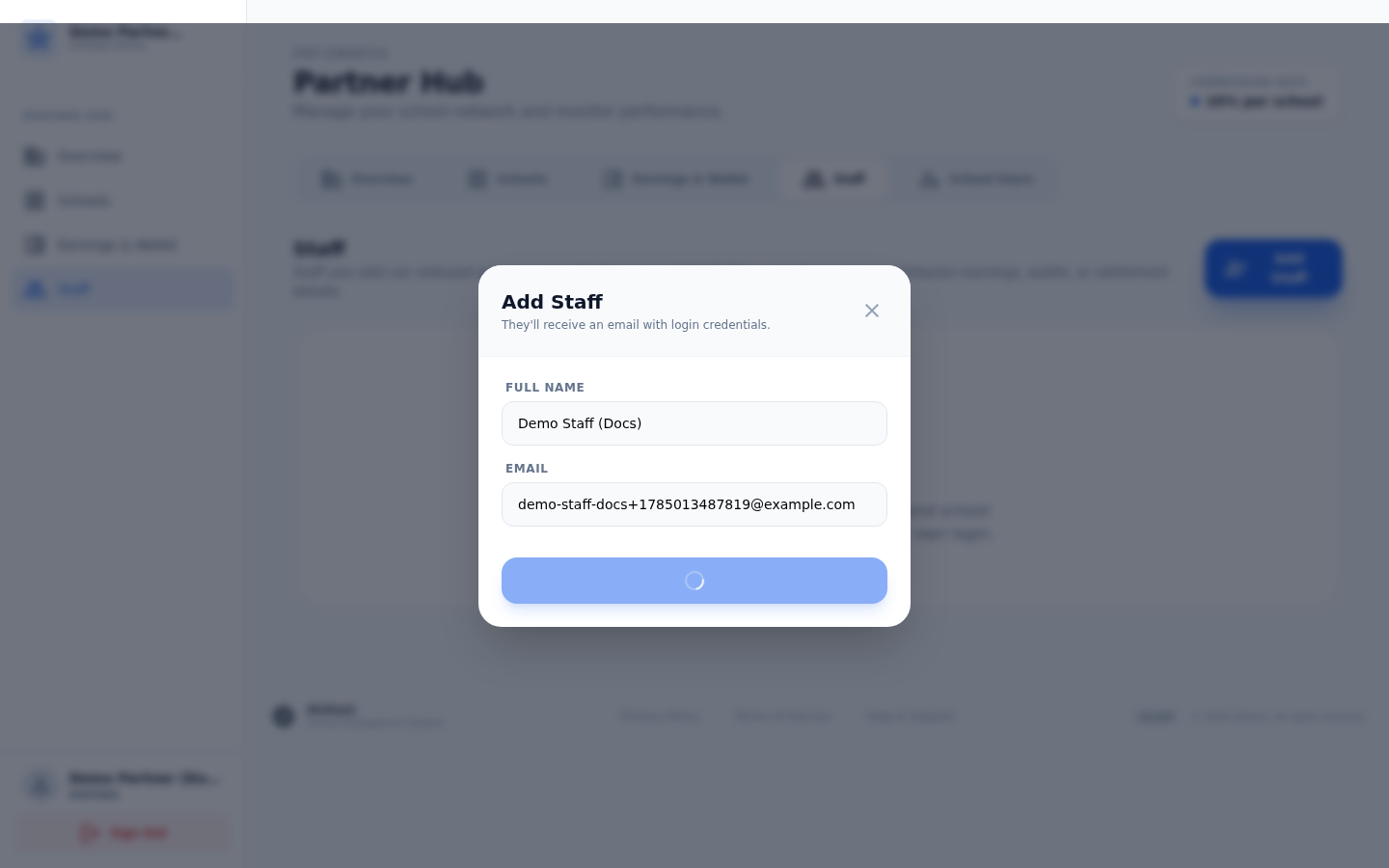
Click "Add Staff" and enter their name and email. They receive a welcome email with login credentials and can immediately start onboarding and managing schools for you.
Manage the team
Every delegate you've added shows up here with their status, ready to suspend or remove if needed.
Earnings & Wallet
Owner-only — this tab is hidden from delegated staff. Track your commission and manage where payouts land.
Track your income
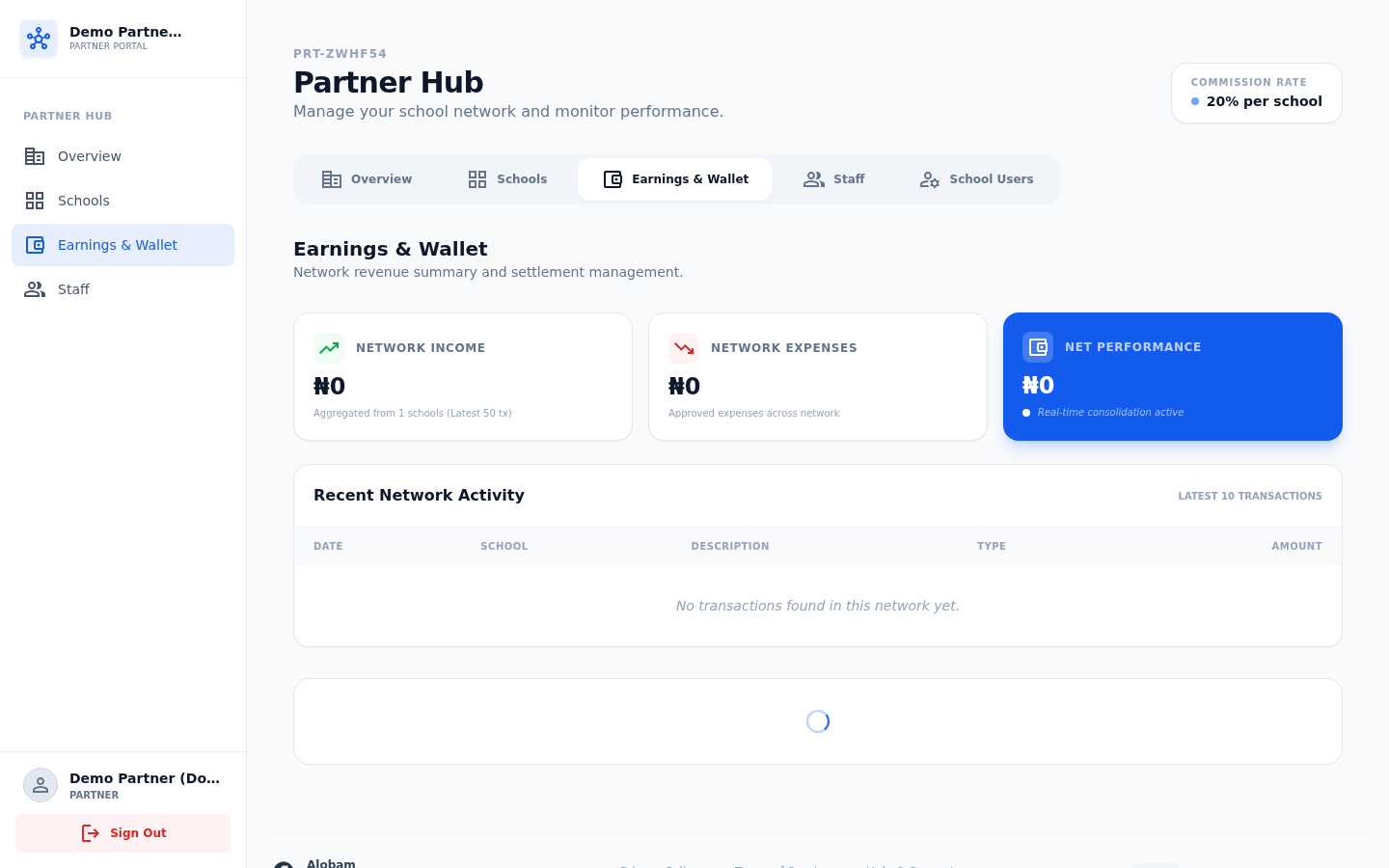
The Earnings & Wallet tab combines a financial rollup across all your schools' transactions with your wallet balance, lifetime earnings, current commission rate, and a log of recent commission credits. Paystack automatically splits every school payment at source — your share lands in your wallet with no invoicing required.